
4.4. Mix Map
Choose Mix Map from the Mix toolbar to open a read-only view of the current track order. It is available in Community and Pro whenever the current Mix is non-empty. Selecting anything in the map changes only the highlighted track and route; it never reorders tracks or changes Mix settings.
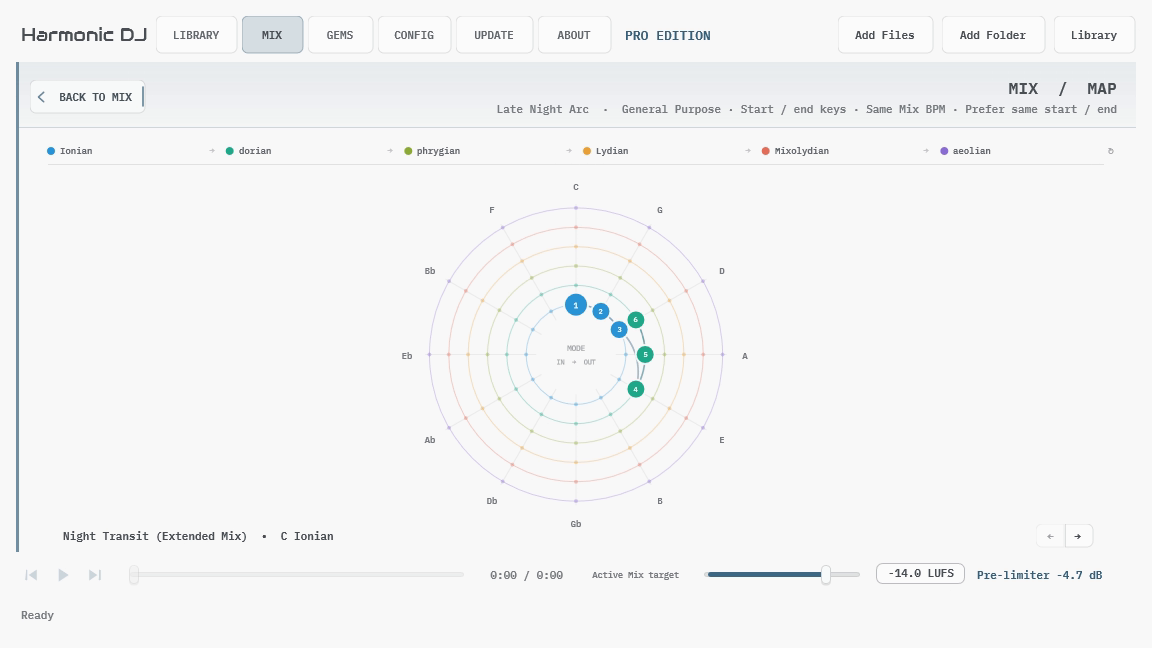
Read the map from angle, radius, and route:
- Angle shows the root. Roots advance clockwise around the circle of fifths, with C at the top.
- Radius shows the mode. The six lanes progress outward through Ionian, dorian, phrygian, Lydian, Mixolydian, and aeolian, then wrap from aeolian back to Ionian.
- Numbered nodes show tracks. Each number marks that track’s incoming or start key. The selected track is drawn larger and its title and key appear along the bottom of the page.
- Solid routes show transitions. A solid segment connects the previous track’s outgoing key to the next track’s incoming key. The selected transition is emphasized and points toward its destination.
- Dashed routes show movement within a track. When a track starts and ends in different keys, its numbered start node connects to a small outlined end marker.
Tracks that share one start key fan out around a common hub so every track number remains selectable. Choose a numbered node directly, choose the hub to cycle through that shared-key group, or use the left and right buttons beside the title to move through the complete tracklist.
The Mix Map describes the authored route; it is not a transition score. Use it to recognize steady modal progressions, parallel movement, circle-of-fifths motion, repeated keys, and deliberate returns that are harder to see in a table. Return to the Mix tracklist when you want to edit, audition, regenerate, or share the result.