
5.1. Mix Settings Presets
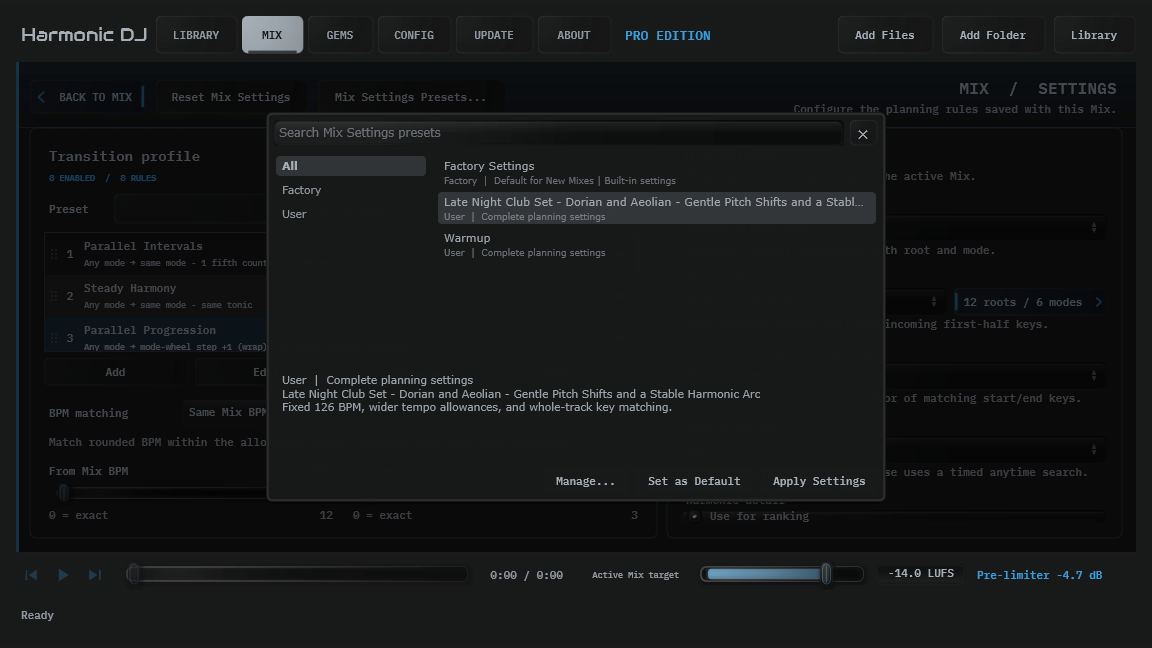
Open Mix Settings Presets… at the top of Mix Settings. This browser uses the same search and management controls as Mixes and transition presets.
Under Manage, choose Save Current Mix Settings As…, then enter a name and optional description. A complete preset includes key detection and contour/reference settings, transition rules, allowed keys, key matching and start/end relationship, BPM strategy and allowances, Auto or fixed Mix BPM, search quality, harmonic detail, and the loudness target.
Select a preset and choose Apply Settings to copy those settings into the active Mix. This creates one undo step. The Mix keeps its name, target track count, selected groups, imported-playlist selection, tracklist, locks, exclusions, and sharing details. New generation uses the applied settings; existing track placements and their authored transition explanations remain intact.
Factory Settings restores the built-in planning setup while keeping that same Mix context. A transition preset in the Transitions panel copies only the transition profile; a complete Mix Settings preset also includes the other planning controls and targets.
Choose Set as Default beside Apply Settings to use the selected profile whenever you create a blank Mix or import a playlist. The browser marks it Default for New Mixes, and the choice survives relaunch. The button is disabled when the selected profile is already the default. Selecting Factory Settings with this action restores the built-in default. Setting a default leaves the active Mix and its undo history intact; use Apply Settings to change that Mix.
New Mixes copy the selected profile’s latest saved settings. Updating the profile affects future Mixes, while deleting the default profile restores Factory Settings. The same default supplies a blank Mix when there are no saved Mixes or when you delete the final Mix. Duplicates and imported .hdjmix documents retain their own settings.
To replace a saved setup, select a user preset and choose Update Selected User Preset. Edit Selected User Preset… changes its name and description, and Delete Selected User Preset… removes it. Updating or deleting a preset leaves existing Mixes with their own copied settings. Factory Settings cannot be edited or deleted.
Preset application, saving, and updating follow the active Mix’s editing access. Community Mixes with up to five tracks can use these controls; Pro also allows larger Mixes.