
2.3. Appearance and Interface Size
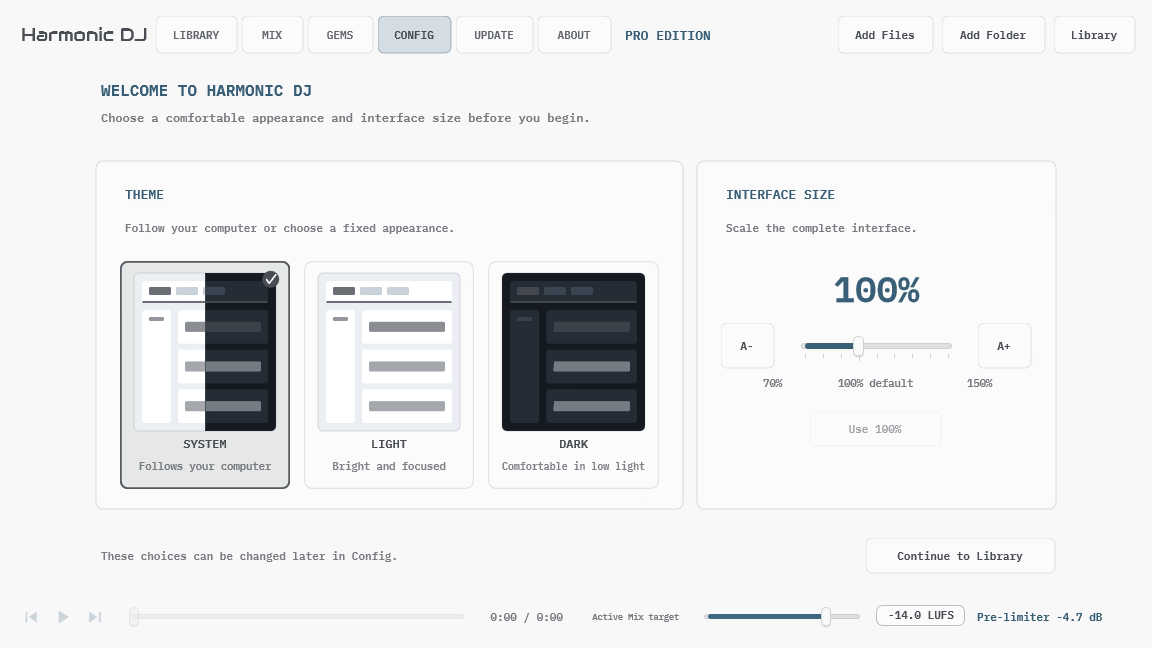
On first launch, Harmonic DJ opens a one-time appearance setup before the Library. Choose an appearance and a comfortable interface size, then select Continue to Library. You can change both choices later in Config. If an earlier Harmonic DJ version already saved a Light or Dark preference, setup selects that preference automatically so continuing performs the migration without changing how the application looks.
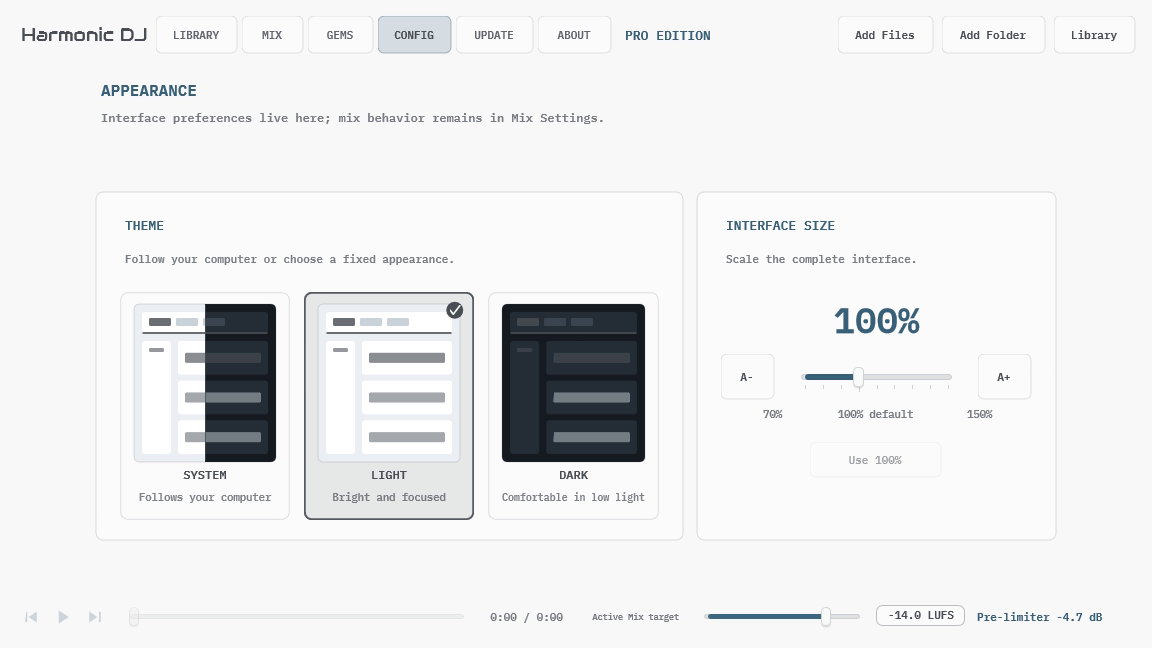
Open Config, immediately to the left of About, for application-wide appearance settings. Config is separate from Mix Settings: changing the theme or interface size affects the application, while Mix Settings contains the musical planning rules saved with one Mix.
Choose System to follow the operating system’s current light or dark appearance. Harmonic DJ updates while it is open when the system setting changes. Choose Light or Dark for a fixed appearance that does not follow the operating system. The selection is saved globally and restored the next time Harmonic DJ opens.
Interface Size scales the complete application from 70% to 150% in 10% steps, preserving the layout instead of enlarging individual labels. Use A-, A+, the slider, or Use 100% to restore the original size. While you drag the slider, the percentage preview follows the selected value; Harmonic DJ resizes once when you release it.