1. Introduction
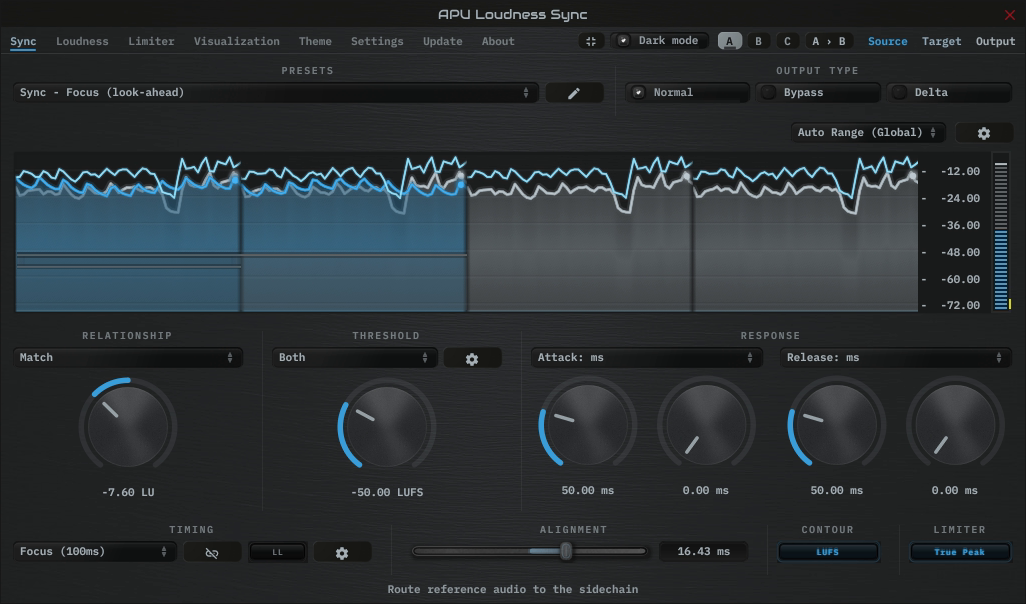
APU Loudness Sync is a sidechain loudness matching plug-in by APU Software, LLC. It measures the main input and a sidechain reference, then adjusts the main’s gain to match the reference, stay below it, or stay above it. Use Offset to set the loudness difference between them.
2. Routing
Insert Sync on the track you want to adjust. This is the main input. Route another track to the sidechain to use it as the reference. Sync measures both signals and adjusts only the main input.
- Select the reference track in your DAW’s external sidechain routing for Sync.
- Play both tracks. Start with Match and 0 dB offset, then adjust timing mode and attack/release while listening.
- Set low-level threshold above unwanted background noise and choose which inputs to protect with threshold mode.
- Use Normal, Bypass, and Delta output type to compare the result while Sync keeps processing.
The sidechain tap point determines which version of the reference Sync hears. A pre-fader send is unaffected by the reference track’s fader; a post-fader send follows it. Set the send to 0 dB to use the reference at its original level. Depending on your DAW, you may need a send, rack, or intermediate track to route audio from a particular point in the chain. Keep the routing free of feedback loops.
If the reference becomes unavailable, Sync keeps its last gain adjustment. Before the first usable reference measurement, the gain adjustment is 0 dB. Use Bypass to hear the original main input. With Reference protection enabled, a fading reference can still change the gain before its measured loudness crosses the threshold.
With Channel Link off, main and reference channels are paired in order. Extra reference channels are ignored, and missing channels receive silence. For example, a mono reference feeds only the first channel of a stereo main input. Use matching layouts, or route the reference to each channel you want to follow it.
Sync is available as a plug-in only. The reference is supplied by your DAW’s sidechain routing.
3. Parameters
This software supports a variety of parameters, most of which can be adjusted in real-time. This section provides an overview of each parameter, with each subsection detailing the parameters for the associated tab in the user interface. From within the user interface, you can also hover the mouse over a slider, combo-box, or checkbox to see a popup description of the parameter.
3.1. Sync
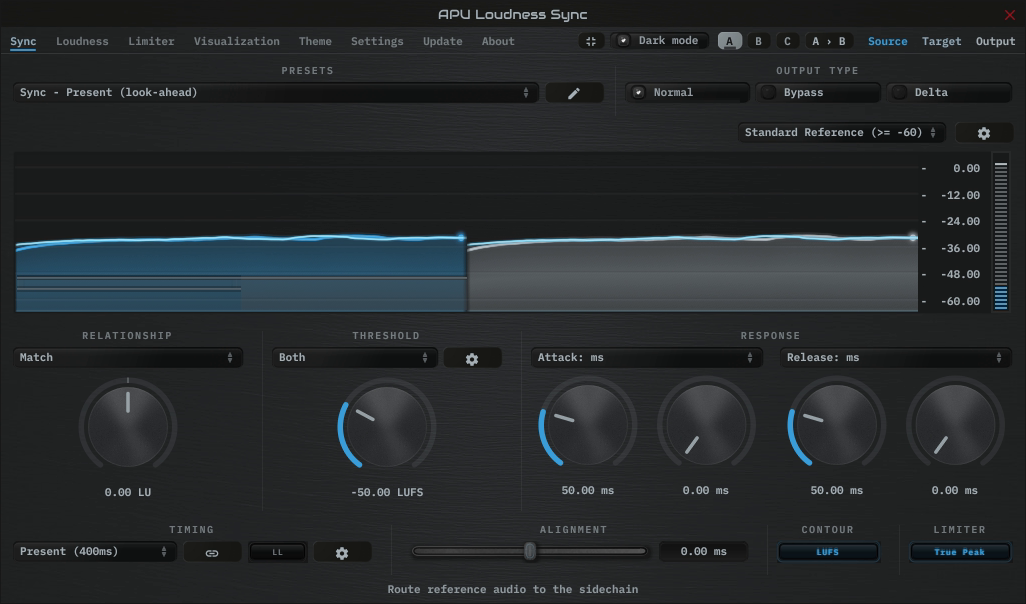
The Sync tab contains the relationship, threshold, response, timing, alignment, contour, and limiter controls, along with the loudness display. The sections below describe each control.
3.1.1. Presets
The presets provide a starting point for each timing mode, with look-ahead and low-latency variants. Tight, Focus, and Present use momentary loudness, Deep uses short-term loudness, and Traditional uses RMS. HD presets use the ECMA-418 IIR contour type.
To preserve your relationship, offset, threshold, and alignment settings when loading these presets, turn off Reset on preset load. Alignment remains limited to the selected timing mode’s supported range.
Sidechain routing is configured in your DAW and is not stored in presets.
See timing mode and low-latency timing for the measurement windows and look-ahead settings.
The preset browser includes user-scope load options for ordinary preset changes. Reset on preset load runs a filtered parameter reset before the preset is applied. Load preset visuals controls whether the preset can change the hinted theme and visualization settings. Full Reset always restores all default parameter values, regardless of these options. You can switch between loading dark or light themes through the dark mode parameter.
Currently, the following presets are available (“Full Reset” restores all default parameter values):
- Full Reset
- Sync - Tight (look-ahead)
- Sync - Tight HD (look-ahead)
- Sync - Focus (look-ahead)
- Sync - Focus HD (look-ahead)
- Sync - Present (look-ahead)
- Sync - Present HD (look-ahead)
- Sync - Deep (look-ahead)
- Sync - Deep HD (look-ahead)
- Sync - Traditional (look-ahead)
- Sync - Tight (low-latency)
- Sync - Tight HD (low-latency)
- Sync - Focus (low-latency)
- Sync - Focus HD (low-latency)
- Sync - Present (low-latency)
- Sync - Present HD (low-latency)
- Sync - Deep (low-latency)
- Sync - Deep HD (low-latency)
- Sync - Traditional (low-latency)
3.1.2. Output type
Output type selects which signal you hear:
- Normal: the main input with Sync’s gain adjustment.
- Bypass: the original main input.
- Delta: the difference between Normal and Bypass (Normal minus Bypass).
Sync keeps measuring both inputs as you switch. Use these controls for comparisons while keeping processing active. The host’s plug-in bypass is a separate control.
3.1.3. Visualization
The visualization shows source, target, and output loudness. History plots loudness over time; histogram shows how often the signal falls within each loudness range. Hover over a histogram bucket to see its range.
The default layout places the main source and output in separate panels. Each panel also shows the sidechain reference as a thinner, lighter line (see show companion). Compare the output with this line to see how closely it follows the reference and your chosen offset.
Target shows the loudness Sync is trying to reach after applying relationship, offset, and threshold protection. It can differ from the reference itself.
More settings are available on the visualization tab and by right-clicking the display.
Double-click the visualization to expand it and hide the other controls.
3.1.4. Raster type
The raster type parameter allows you to specify the type of raster visualization. You can select between history and histogram views, with either loudness or delta values. Loudness values match the currently selected loudness type while delta values take the difference between source and target or output loudness.
Delta view is useful for determining how much loudness is being changed, and how much residual there is between target and output loudness.
You can also visualize target vs output residual via breath residual option.
3.1.5. Mini mode
The mini mode button in the upper-right switches to a smaller editor with the main controls and a peak meter.
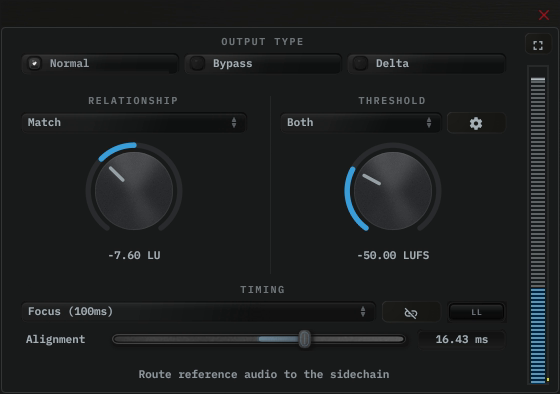
Output type, relationship, threshold mode, timing mode, and alignment remain available. Set attack/release in the full editor; mini mode keeps those settings.
Use the expand button in the upper-right to return to the full editor.
3.1.6. Timing mode
The timing mode combo-box selects how quickly Loudness Sync detects loudness changes and how much look-ahead it uses. Each timing mode uses its own loudness window:
- Tight uses a 25ms momentary loudness window.
- Focus uses a 100ms momentary loudness window.
- Present uses a 400ms momentary loudness window.
- Deep uses a 3s short-term loudness window.
- Traditional uses a 300ms RMS window.
3.1.7. Low-latency timing
Low-latency timing removes the look-ahead delay for the selected timing mode. The loudness measurement still uses the same window of recent audio.
Alignment is disabled while low-latency timing is on, and its value is kept for when you turn look-ahead back on. Changing this setting changes the latency reported to the host.
3.1.8. Channel link
The channel link button toggles whether Loudness Sync applies the same gain correction to all channels or processes each channel independently.
When linked, Loudness Sync measures and corrects all channels together, preserving the stereo or surround image. When unlinked, each channel is leveled independently, which can correct loudness imbalances between channels but may alter the spatial image.
3.1.9. Loudness type
Timing mode and channel link determine the loudness measurement used for both the main input and the sidechain reference.
3.1.10. IIR contour type
IIR contour type changes the IIR filter contour of LUFS loudness measurements; peak and RMS measurements are unaffected. The following contours are supported:
- K-weighting
- ECMA-418
- ITU-R 468
- A-weighting
- C-weighting
Contours other than K-weighting no longer conform to the LUFS standard, but are provided for flavor and perceptual precision.
3.1.11. Relationship
Relationship selects how the main input follows the reference plus offset:
- Match raises or lowers gain to follow the target.
- Ceiling reduces gain when the main is above the target.
- Floor adds gain when the main is below the target.
The gain adjustment is calculated as reference loudness + offset - main loudness. Ceiling restricts it to cuts and Floor restricts it to boosts. Attack/release sets how quickly the adjustment is applied.
Cuts and boosts are relative to the main input’s original level. Floor can still reduce an earlier boost as the reference gets quieter; it simply keeps the requested gain at or above 0 dB.
These modes follow loudness measurements. To control sample or true peaks, turn on the built-in limiter with limiter mode.
3.1.12. Offset
Offset sets the target above or below the reference, from -24 to +24 LU (dB with Traditional timing). For example, -3 LU tells Match to follow 3 LU below the reference.
Offset applies to all three relationship modes. Ceiling still allows only gain reduction, and Floor still allows only gain boost.
3.1.13. Threshold mode
Threshold mode chooses how Sync responds below the low-level threshold:
- Off: turns off threshold protection.
- Main: reduces boost as the main input falls below the threshold, using the low-level knee. Gain reduction can continue to follow the reference.
- Reference: holds the current gain adjustment when the reference falls below the threshold. After a reset, the first usable reference measurement can establish a gain adjustment even if it is below the threshold.
- Both: applies Main and Reference protection together. This is the default.
Reference protection holds the gain adjustment at the threshold crossing. Loudness is measured over a window, so the gain may already have changed during a fade before the measured reference crosses the threshold. Main protection can still reduce boost while Reference protection is holding it.
Sync keeps its last gain adjustment when an input measurement is unavailable or effectively silent, including when threshold mode is Off.
3.1.14. Low-level threshold
Low-level threshold sets where threshold mode protection begins. It uses the current loudness units and defaults to -50 LUFS. Use low-level knee to make Main protection reduce boost gradually below the threshold.
This control is enabled when threshold mode is Main, Reference, or Both.
3.1.15. Low-level knee
Low-level knee sets how gradually Main protection removes boost below low-level threshold. The default is 6 dB: with a -50 LUFS threshold, the allowed boost falls from full strength at -50 LUFS to zero at -56 LUFS.
A 0 dB knee switches directly at the threshold. Reference protection holds gain at the threshold crossing regardless of the knee setting.
Click the settings button beside threshold mode to adjust the knee.
3.1.16. Ballistics type
Ballistics type changes Loudness Sync’s ballistics behavior.
- Natural (dithered) applies light dithering to natural ballistics deltas.
- Natural (direct) applies normal smooth attack and release ballistics.
- Inertial (dithered) applies light dithering to inertial ballistics deltas.
- Inertial (direct) applies attack and release ballistics with inertia.
Inertial ballistics are more responsive to sudden changes in loudness, but may sound less natural.
3.1.17. Attack/Release
Attack sets how quickly gain falls; release sets how quickly it rises. Both default to 50 ms. Longer times smooth out gain changes but make Sync slower to reach the target.
Times can be set in samples, milliseconds, beats, or a ratio of the timing mode look-ahead. Beats use the BPM setting. Look-ahead units are relative to half the timing window; they produce an immediate response when low-latency timing removes the look-ahead.
Set attack and release in the full editor. Their values are kept when you switch to mini mode.
3.1.18. Attack/Release hold
The attack and release hold parameters allow you to specify the amount of delay before attack/release phase begins.
Release hold maintains gain reduction (“attack”) for the specified release hold time. Attack hold maintains gain amplification (“release”) for the specified attack hold time.
3.1.19. Alignment
Alignment shifts when Sync responds to the reference. Positive values make the response earlier; negative values make it later. For example, use -150 ms to compensate for a reference that arrives 150 ms early.
Alignment can move by up to half the timing mode window in either direction. For example, Focus allows ±50 ms and Present allows ±200 ms. Changing timing mode updates the range and limits the stored value to it. Alignment uses the existing look-ahead without adding latency.
Low-latency timing disables Alignment and keeps its value for when look-ahead is turned back on. Alignment shifts the loudness response; it does not move the audio on your track.
3.2. Loudness
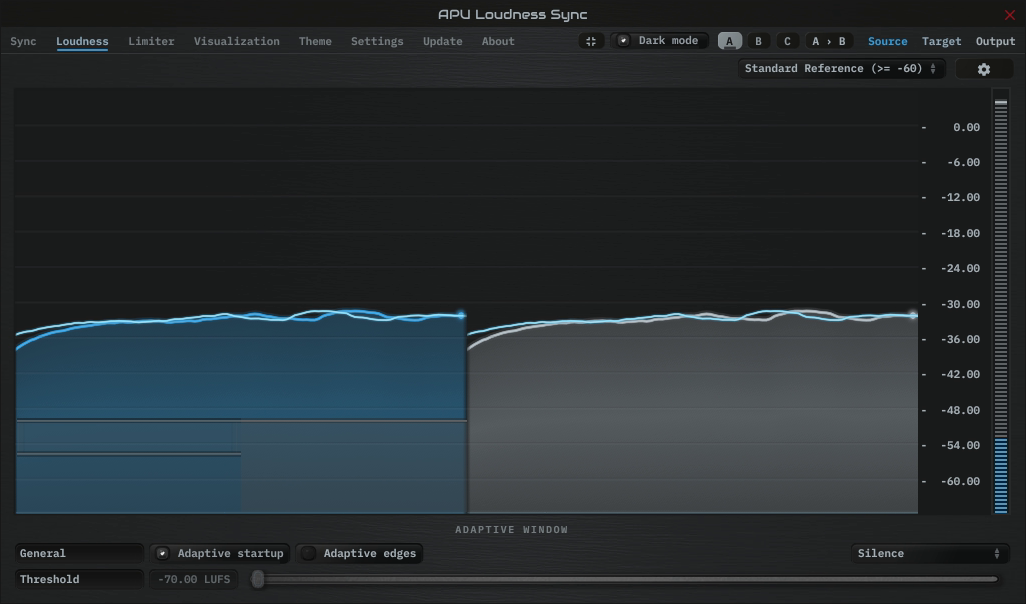
The loudness tab contains parameters relating to loudness measurements and detector behavior.
3.2.1. Adaptive startup
The adaptive startup parameter enables or disables adaptive startup behavior for loudness measurements. When enabled, the loudness window begins small and grows as the window fills. This can be useful for reducing transient artifacts at the start of playback.
3.2.2. Adaptive edges
The adaptive edges parameter enables or disables adaptive edge detection for loudness measurements. When enabled, loudness values crossing the configured adaptive threshold, or silence, will be detected and the loudness window will be reset. This causes the adaptive startup behavior to apply to every transition to/from silence. This can be useful for reducing transient artifacts during sudden changes in loudness.
3.2.3. Adaptive type
The adaptive type parameter allows adaptive startup and adaptive edges to be configured for Silence or adaptive threshold modes. Silence mode will only reset the loudness window when the input signal is silent. Adaptive threshold mode will reset the loudness window when the input signal crosses the configured adaptive threshold.
3.2.4. Adaptive threshold
The adaptive threshold parameter allows you to configure the threshold used by adaptive edges in adaptive threshold mode. This threshold is specified in the same units as the current loudness type.
3.3. Limiter
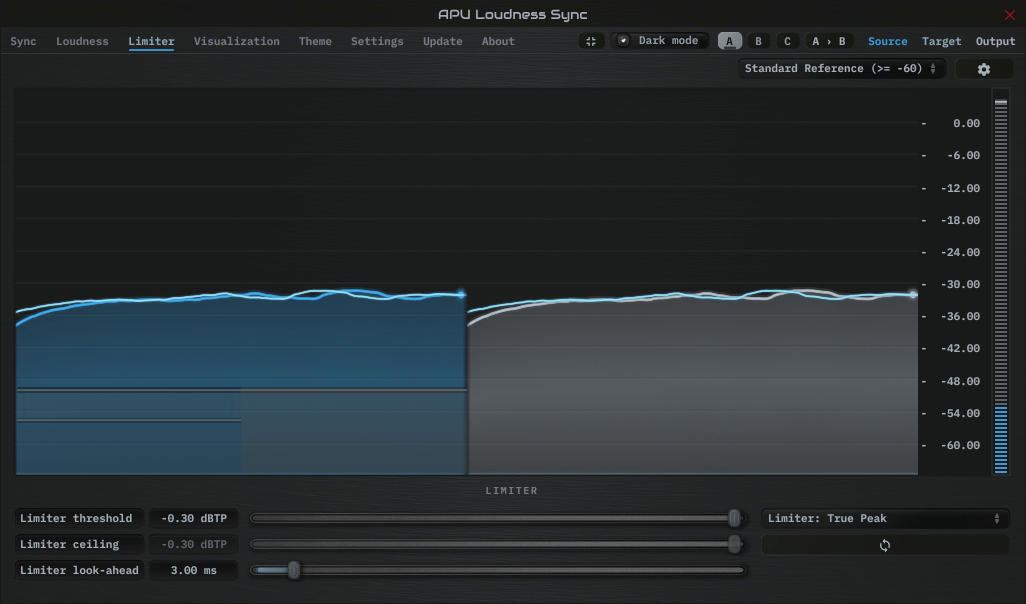
The limiter tab contains parameters relating to the built-in limiter. The limiter scans the limiter lookahead region of blocks for peak or true peak loudness values over the limiter ceiling. When these peaks are encountered, the current gain reduction trajectory is adjusted to accomodate the peak.
3.3.1. Limiter mode
The limiter mode parameter lets you decide which peaks, if any, will be used for detection. The following options are available:
- None: No limiting
- Peak: Digital peaks are detected
- True Peak: Intra-sample peaks are detected according to the LUFS True Peak specification.
3.3.2. Limiter threshold
The limiter threshold parameter determines the loudness at which the limiter starts to apply gain reduction. Loudness values above threshold are raised to the limiter ceiling.
3.3.3. Limiter ceiling
The limiter ceiling parameter determines the maximum peak loudness value that the limiter will allow. When the limiter detects a peak above this value, it will pre-emptively begin to apply gain reduction. Note that make-up gain is not automatically applied.
3.3.4. Limiter threshold link
The limiter threshold link parameter allows you to link the limiter threshold and limiter ceiling parameters. When linked, the ceiling will automatically adjust to match the threshold.
3.3.5. Limiter lookahead
The limiter look-ahead parameter determines the amount of time to look into the future when detecting peaks. Shorter lookahead times will result in more aggressive gain reduction, with the results becoming more gritty and distorted. Longer lookahead times will result in more transparent gain reduction, but will push the average level of the audio further down.
3.4. Visualization
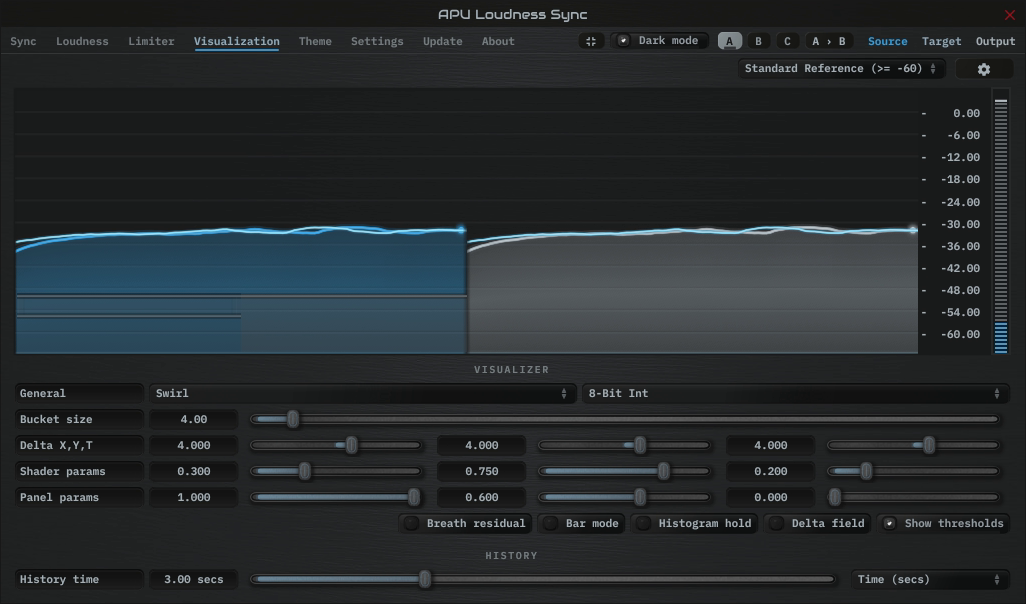
The visualization tab contains parameters related to real-time configuration of Loudness Sync’s visualizations. This section describes these various settings.
3.4.1. Auto range
The auto range parameter enables or disables the visualization’s auto range finding capabilities. This feature operates by analyzing the continuous histogram at each frame to determine a reasonable range for that moment in time. This range is then followed and adjusted smoothly over time.
3.4.2. Visual range presets
Visual range presets are provided for convenience as an example set of industry related loudness ranges.
Currently, the following visual range presets are available:
- Auto Range (Global)
- Auto Range (Per Panel)
- Standard Reference (>= -60)
- Full Range (>= -70)
- Custom Range …
3.4.3. Loudness range
The loudness range parameter allows the visualization loudness range to be set manually. In order for this range to be enabled and used, the visual range presets parameter must be set to “Custom Range”
Note that there are separate loudness ranges for windowed loudness types and peak loudness types.
See range sliders for information about range sliders in general.
3.4.4. Snapshots
The snapshots feature allows you to take a snapshot of the current histogram. This can be useful for comparing histograms.
Each source/target/output signal has its own snapshot. The snapshots are persisted with plug-in state, so they will be available when you reopen the project.
Snapshots can be operated using the popup menu or via keyboard shortcuts.
The following snapshot parameters are available:
- Save/clear snapshot (saves or clears the current histogram)
- Source = Cmd + 1
- Target = Cmd + 2
- Output = Cmd + 3
- Fill snapshot (fills the area under the snapshot)
- Source = Cmd + Alt + 1
- Target = Cmd + Alt + 2
- Output = Cmd + Alt + 3
- Show/hide snapshot (shows or hides the snapshot in the visualization)
- Source = Cmd + Shift + 1
- Target = Cmd + Shift + 2
- Output = Cmd + Shift + 3
On Windows, use Ctrl instead of Cmd.
3.4.5. Layout options
The options menu allows you to configure the layout of the visualization. The following options are available:
- layout source mode : Specifies the layout mode for the source signal.
- layout target mode : Specifies the layout mode for the target signal.
- layout output mode : Specifies the layout mode for the output signal.
- raster type : Specifies the type of raster visualization.
- show thresholds : Specifies whether or not to show thresholds.
- show peak meter : Specifies whether or not to show peak meter.
- show history peak : Specifies whether or not to show history peak hold.
- show axis labels : Specifies whether or not to show loudness axis labels.
- show axis lines : Specifies whether or not to show loudness axis lines.
- show param context : Specifies whether or not to show parameter context while certain parameters are changing.
Each layout mode has an AUTO option which automatically selects the best layout mode based on the current context.
3.4.6. Layout source mode
The layout source mode parameter allows you to configure the layout of the visualization’s source panel.
Currently, the following layout source modes are available:
- None (No source panel is displayed)
- Auto (Automatically selects the best layout mode based on the current context)
- Source only (Draws just the source signal)
- Source over Target (Draws the target signal first, then the source signal on top)
- Source over Output (Draws the output signal first, then the source signal on top)
3.4.7. Layout target mode
The layout target mode parameter allows you to configure the layout of the visualization’s target panel.
Currently, the following layout target modes are available:
- None (No target panel is displayed)
- Auto (Automatically selects the best layout mode based on the current context)
- Target only (Draws just the target signal)
- Target over Source (Draws the source signal first, then the target signal on top)
- Target over Output (Draws the output signal first, then the target signal on top)
3.4.8. Layout output mode
The layout output mode parameter allows you to configure the layout of the visualization’s output panel.
Currently, the following layout output modes are available:
- None (No output panel is displayed)
- Auto (Automatically selects the best layout mode based on the current context)
- Output only (Draws just the output signal)
- Output over Source (Draws the source signal first, then the output signal on top)
- Output over Target (Draws the target signal first, then the output signal on top)
3.4.9. Delta field type
The delta field type parameter allows you to specify the type of delta field used by the visualization.
The delta field is basically a mapping from each source pixel on the screen to a destination pixel. Pixel shaders are used to iteratively apply this delta field using interpolation and some light dithering effects. This feature is purely for aesthetic purposes and has no effect on the audio.
Raster type effects are drawn into the delta field on each frame.
3.4.10. Bits per pixel
The bits-per-pixel parameter determines the number of bits per pixel to use when rendering visualizations. The default bpp is the best performing. You can increase bpp to improve visual quality.
3.4.11. Breath residual
The breath residual parameter can be used to help visualize sync behavior. For each frame of the visualization, the current residual between target and output loudness is calculated and used to multiply the magnitude of the visualization delta field.
This feature helps you find sections of audio where the sync is having a difficult time keeping up with the amount of target gain. This can help guide the configuration of the attack/release parameters. The direction of the multiplication factor is also set to reflect whether the residual occurred in the attack or release direction, so it’s possible to get a sense of the overall balance between these residuals.
3.4.12. Bar Mode
The “Bar mode” parameter enables/disables bar mode. In bar mode, the visualizations will be drawn as vertical bars instead of sloped lines. This feature is purely for aesthetic purposes and has no effect on the audio.
3.4.13. Bucket size
The bucket size parameter determines the size in pixels of visualization buckets (rectangles).
3.4.14. Histogram hold
The histogram hold parameter enables or disables “hold” mode for the histogram raster types. While “hold” mode is enabled, the histogram will continuously accumulate measurements indefinitely. This can be used to capture a full duration view of your source audio. This allows you to easily adjust ranges to target to a specific region of the full dynamic range.
The histogram will still continuously accumulate measurements while “hold” mode is disabled, but for each new measurement the oldest measurement in history is replaced. This results in a continuously evolving histogram of duration specified by the history length parameter.
3.4.15. Delta X/Y/T
The delta X/Y/T parameters are provided to the visualization delta field in order to manipulate the delta field in real-time. The exact behavior of each parameter depends on the active delta field type.
3.4.16. Delta field
The delta field parameter allows you to enable or disable the visualization delta field.
The delta field is basically a mapping from each source pixel on the screen to a destination pixel. Pixel shaders are used to iteratively apply this delta field using interpolation and some light dithering effects. This feature is purely for aesthetic purposes and has no effect on the audio.
Raster type effects are drawn into the delta field on each frame.
3.4.17. Shader params
The shader parameters control various aspects of visualization rendering. The following options are available:
- Shader param 1: Delta field fade rate. Lower values leave longer trails.
- Shader param 2: Curve fill transparency. Lower values make the curve more transparent, leaving only the edge(s) visible.
- Shader param 3: Curve edge thickness. Lower values make the edge thinner.
3.4.18. Show thresholds
Show thresholds displays the low-level threshold on the source panel for each input selected by threshold mode. Main includes the low-level knee; Reference shows only the threshold. Drag either threshold to adjust the shared value.
When this option is off, thresholds still appear while you adjust their controls.
3.4.19. Panel params
The panel parameters control various aspects of panel rendering. The following options are available:
- Panel param 1: Panel alpha (transparency), 0.0 to remove panel completely
- Panel param 2: Panel hue (rotates through normal, source, target, output).
- Panel param 3: Panel hue intensity
3.4.20. History length
The history length parameter allows you to change the duration of visualization history. This history is a rolling-window where each new loudness sample pushes out the oldest sample, maintaining a continuous history length with the duration you’ve configured here. Note that this setting applies both to history and histogram raster types.
During histogram hold the histogram has an effectively infinite history length.
3.4.21. Show peak meter
The show peak meter parameter allows you to enable or disable peak meter and gain reduction drawing next to the visualizer.
Positive gain delta is drawn from bottom-up, negative gain delta is drawn from top-down.
3.4.22. Show history peak
The show history peak parameter allows you to enable or disable peak hold drawing for history raster visualizations.
This option is only shown while the active raster type includes history.
3.4.23. Show companion
Show companion adds a thinner, lighter line for the other input to each history panel. When source shows the main input, the companion shows the sidechain, and vice versa. The line uses a lighter shade of the source color and appears while a sidechain is active.
For Loudness Sync, the companion is the sidechain reference. Compare it with output to see how closely the output follows the reference and your chosen offset. Hover over the line to see whether it represents the main input or sidechain.
This option is available when raster type includes history. It is off by default when loading a session saved before the companion trace was added.
3.4.24. Show axis labels
The show axis labels parameter allows you to enable or disable axis drawing in the visualization.
The axis is scaled relative to the loudness range, which can be manual or auto range.
3.4.25. Show axis lines
The show axis lines parameter allows you to enable or disable axis line drawing in the visualization.
axis lines are drawn at each Show axis labels.
3.4.26. Show param context
The show param context parameter allows you to enable or disable param context text bubbles during parameter changes.
3.5. Theme
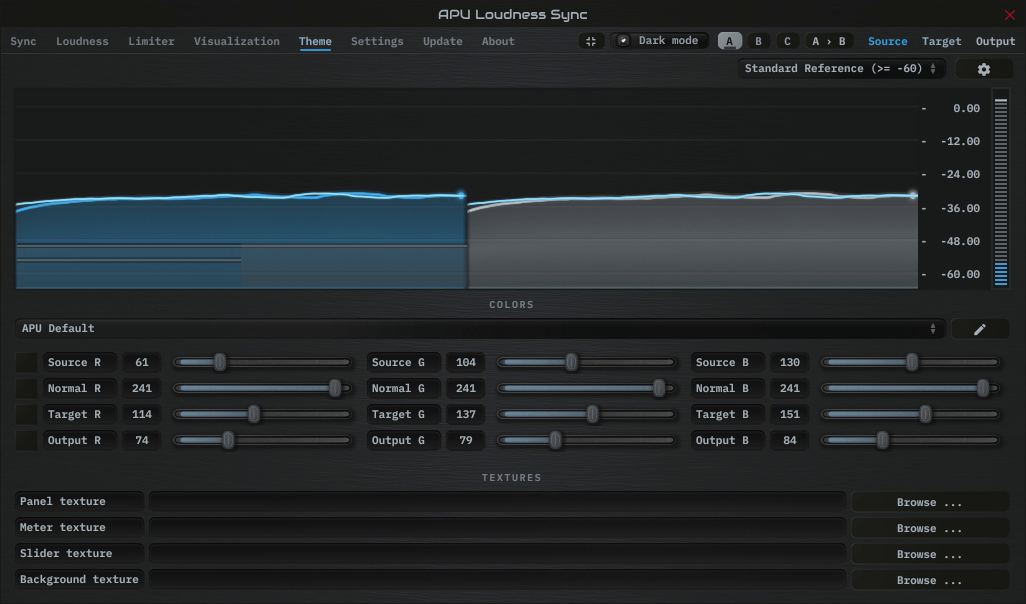
The theme tab contains parameters related to color themes. Here you can select between the bank of color theme presets, or configure the individual colors yourself.
3.5.1. Theme presets
The theme presets combo-box allows you to switch between a variety of theme presets. Each theme has a light and dark variation. Switching between theme presets will load values into source color, normal color, target color and output color.
Currently, the following themes are available:
- APU Default
- APU Red
- APU Vermilion
- APU Orange
- APU Amber
- APU Yellow
- APU Lime
- APU Chartreuse
- APU Harlequin
- APU Green
- APU Erin
- APU Spring
- APU Aquamarine
- APU Cyan
- APU Turquoise
- APU Azure
- APU Cerulean
- APU Blue
- APU Indigo
- APU Violet
- APU Purple
- APU Magenta
- APU Raspberry
- APU Rose
- APU Crimson
3.5.2. Source color
The source color parameters control the red, green, and blue components of the source color.
The source color is used in a variety of contexts, from interactive widgets to visualization elements. This color signifies that an element relates to the source signal in some way. This color is expected to contrast against the normal color to some extent.
3.5.3. Normal color
The normal color parameters control the red, green, and blue components of the “normal” color.
The normal color is used in a variety of contexts, from interactive widgets to visualization elements. This color signifies that an element is essentially neutral, not related to source, target or output signal. This color is expected to contrast against the source color, target color, and output color to some degree.
3.5.4. Target color
The target color parameters control the red, green, and blue components of the target color.
The target color is used in a variety of contexts, from interactive widgets to visualization elements. This color signifies that an element relates to the target signal in some way. This color is expected to contrast against the normal color to some extent.
3.5.5. Output color
The output color parameters control the red, green, and blue components of the output color.
The output color is used in a variety of contexts, from interactive widgets to visualization elements. This color signifies that an element relates to the output signal in some way. This color is expected to contrast against the normal color to some extent.
3.5.6. Textures
The textures configuration allows you to change the user interface textures.
The panel texture is used for the background of the user interface and has the shader params applied. The meter texture is used to fill the visualization effects. The background texture is used throughout the plug-in for shading.
These settings are stored with user scope, so you don’t need to change them with every instance. Closing a texture will reverted to the default internal texture.
Typically, the panel texture should be very dark and the meter texture should be very light.
3.6. Settings
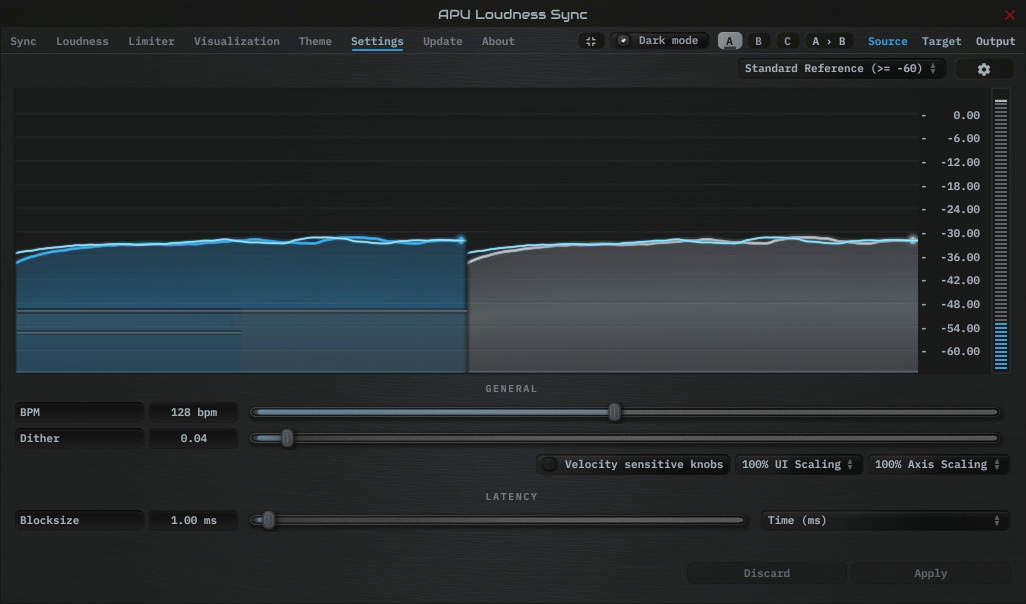
General contains tempo and interface settings. Changes in the Latency section take effect when you click Apply, since they can affect delay compensation. Avoid automating these latency parameters.
3.6.1. BPM
The bpm option allows you to set the BPM used by tempo-relative parameters.
3.6.2. Host BPM
The host bpm option enables usage of the host’s BPM for tempo-relative parameters. When disabled, the bpm parameter is used instead.
3.6.3. Dither
The dither parameter determines the strength of ballistics dithering. This parameter applies only to dithering ballistics type modes.
3.6.4. Velocity sensitive knobs
If enabled, this will turn on velocity-sensitive dragging, so that the faster the mouse moves, the bigger the movement to the knobs. This helps when making accurate small-scale adjustments.
This parameter is saved at user scope, so it will be remembered between sessions.
3.6.5. UI Scaling
The UI scaling option allows you to set the scaling of the user interface. This is useful for high-DPI displays, where the default scaling may be too small to read comfortably.
This parameter is saved at user scope, so it will be remembered between sessions.
3.6.6. Axis Scaling
The axis scaling option allows you to set the scaling of the axis ticks, labels and text bubbles. This is useful for high-DPI displays, where the default scaling may be too small to read comfortably.
This parameter is saved at user scope, so it will be remembered between sessions.
3.6.7. Dark mode
The dark mode toggle enables/disables dark mode. When enabled, theme colors have their brightness inverted.
3.6.8. Gain change write
The gain change write mode controls how the plug-in publishes the latest signed gain change to the host as an automatable parameter. This can be useful for recording the plug-in’s gain changes directly to an automation lane when supported by the DAW.
Disabled turns gain change write off.
Native uses the format-native write path when available. For non-VST3 plug-ins, Native falls back to the same behavior as Compatibility.
Compatibility uses the generic host-notify write path, which may work in more places but is less elegant than Native when the host supports the native path.
Host support for plug-in generated automation varies. When supported, put the host into Write or Touch mode and record the Gain Change Write parameter.
Gain change write is output-only. The recorded automation lane is not read back into the plug-in’s processing.
3.6.9. Blocksize
Blocksize sets the time resolution of source loudness measurements. Smaller blocks give finer timing and can help with fast attack/release settings, at the cost of more CPU usage.
BPM units for block size are evaluated once at the time you press Apply.
3.6.10. Delay compensation
The delay compensation parameter determines whether or not the plug-in will report latency to the host. Delay compensation is used by hosts to keep audio synchronized across channels.
3.7. Update
The update tab allows you to check for the latest product versions. Just click “Check for updates” to see the latest version numbers. If you’re not running the latest version, you can click “Download” to open the download page in your default browser.
3.8. About
The about tab contains basic information about the plug-in. This is also where you can activate or deactivate your product keys and check license status.
4. Glossary
This section defines some of the concepts used within the software.
4.1. Range sliders
Range sliders are used throughout the plug-in in order to specify the upper and lower boundaries of a range. These ranges can be controlled via mouse in various ways.
- Click and drag the lower thumb to adjust the minimum value.
- Click and drag the upper thumb to adjust the maximum value.
- Click and drag the region between slider thumbs to move both values. This allows you to adjust the average loudness without expanding/contracting the dynamic range.
- Ctrl + click and drag the region between slider thumbs to expand/contract range without changing the average (center) value. Drag the mouse up and down, left and right are ignored.
- Shift + click and drag the region between slider thumbs to combine both. Drag the mouse up and down to expand/contract range. Drag the mouse left and right to move both values.
4.2. History
One of the primary views into your audio that this software provides is real-time history. The history view maintains a recent history of loudness measurements, continuously displaying them in FIFO order. This view helps you understand how the signal is changing over time, in real-time. History length and bucket size can be configured dynamically without forcing the history to reset.
4.3. Histogram
One of the primary views into your audio that this software provides is a real-time histogram. Histograms in general provide a quick and intuitive way to understand the relative frequency of different measurements. This is very useful when judging the overall dynamic range of the audio. The histogram provided by this software is capable of changing history length, bucket size and size continuously.
4.4. Source
The term “source” is used throughout the plug-in to identify the plug-in’s input source signal. This signal is represented in the user interface by the current theme’s source color.
4.5. Target
Target is the loudness Sync is trying to reach. It starts with the reference plus offset, then applies relationship, threshold mode, and gain limits. The output can take time to reach this level, depending on attack/release. Target is shown using the theme’s target color.
4.6. Output
The term “output” is used throughout the plug-in to identify the output type signal. This signal is represented in the user interface by the current theme’s output color.
5. Credits
This software was developed by APU Software, LLC and is available as VST (windows x64/x86, macOS universal), Audio Unit (macOS universal), or Pro Tools AAX (windows x64, macOS universal). The software libraries below are utilized for portions of the software:
- JUCE (cross-platform audio and user interface framework)
- Boost (header-only algorithms)
- libebur128 (loudness measurements)
- melatonin_blur (blur effects)
Demo video song credits:
- Mountaineer - Blue Haze, licensed via ShutterStock

5.1. MIT License (libebur128)
Copyright (c) 2011 Jan Kokemüller
Permission is hereby granted, free of charge, to any person obtaining a copy
of this software and associated documentation files (the "Software"), to deal
in the Software without restriction, including without limitation the rights
to use, copy, modify, merge, publish, distribute, sublicense, and/or sell
copies of the Software, and to permit persons to whom the Software is
furnished to do so, subject to the following conditions:

The above copyright notice and this permission notice shall be included in
all copies or substantial portions of the Software.

THE SOFTWARE IS PROVIDED "AS IS", WITHOUT WARRANTY OF ANY KIND, EXPRESS OR
IMPLIED, INCLUDING BUT NOT LIMITED TO THE WARRANTIES OF MERCHANTABILITY,
FITNESS FOR A PARTICULAR PURPOSE AND NONINFRINGEMENT. IN NO EVENT SHALL THE
AUTHORS OR COPYRIGHT HOLDERS BE LIABLE FOR ANY CLAIM, DAMAGES OR OTHER
LIABILITY, WHETHER IN AN ACTION OF CONTRACT, TORT OR OTHERWISE, ARISING FROM,
OUT OF OR IN CONNECTION WITH THE SOFTWARE OR THE USE OR OTHER DEALINGS IN
THE SOFTWARE.
5.2. MIT License (melatonin_blur)
Copyright (c) 2023 Sudara Williams
Permission is hereby granted, free of charge, to any person obtaining a copy
of this software and associated documentation files (the "Software"), to deal
in the Software without restriction, including without limitation the rights
to use, copy, modify, merge, publish, distribute, sublicense, and/or sell
copies of the Software, and to permit persons to whom the Software is
furnished to do so, subject to the following conditions:

The above copyright notice and this permission notice shall be included in all
copies or substantial portions of the Software.

THE SOFTWARE IS PROVIDED "AS IS", WITHOUT WARRANTY OF ANY KIND, EXPRESS OR
IMPLIED, INCLUDING BUT NOT LIMITED TO THE WARRANTIES OF MERCHANTABILITY,
FITNESS FOR A PARTICULAR PURPOSE AND NONINFRINGEMENT. IN NO EVENT SHALL THE
AUTHORS OR COPYRIGHT HOLDERS BE LIABLE FOR ANY CLAIM, DAMAGES OR OTHER
LIABILITY, WHETHER IN AN ACTION OF CONTRACT, TORT OR OTHERWISE, ARISING FROM,
OUT OF OR IN CONNECTION WITH THE SOFTWARE OR THE USE OR OTHER DEALINGS IN THE
SOFTWARE.